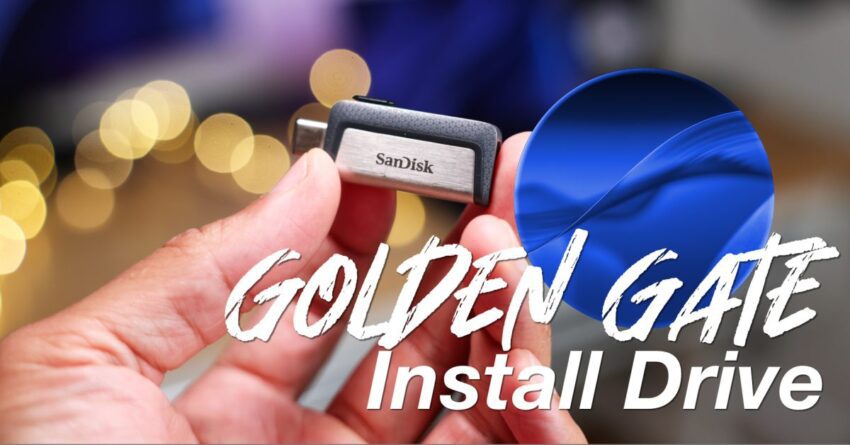
how to create a macos golden gate Creating a macOS Golden Gate USB installer can significantly streamline the process of upgrading multiple Macs, especially for users transitioning from macOS Tahoe or earlier versions.
how to create a macos golden gate
Introduction to macOS Golden Gate
macOS Golden Gate is a pivotal release in Apple’s operating system lineup, offering various enhancements and features that improve user experience, security, and performance. For users still operating on older versions like macOS Tahoe, upgrading to Golden Gate can unlock a plethora of new functionalities and optimizations. However, the upgrade process can sometimes be cumbersome, particularly when dealing with multiple devices. This is where a USB installer becomes invaluable.
Why Create a USB Installer?
Having a macOS Golden Gate USB installer offers several advantages:
- Efficiency: Installing the OS from a USB drive is generally faster than downloading it directly from the internet on each device.
- Convenience: You can install the OS on multiple Macs without needing to download the installer each time.
- Clean Installation: A USB installer allows for a clean installation, which can help eliminate issues caused by previous operating system versions.
- Offline Access: Users can perform installations without needing an internet connection, which is particularly useful in areas with poor connectivity.
Requirements for Creating a USB Installer
Before proceeding with the creation of a macOS Golden Gate USB installer, ensure you have the following:
- USB Drive: A USB drive with at least 16GB of storage capacity. It is essential to note that all data on the drive will be erased during the process.
- macOS Golden Gate Installer: You need to download the macOS Golden Gate installer from the Mac App Store or another trusted source.
- Mac Computer: A Mac device to perform the installation and create the USB drive.
- Backup Data: Ensure that you back up any important data on your USB drive before proceeding, as the process will erase all existing data.
Step-by-Step Guide to Create a macOS Golden Gate USB Installer
Step 1: Download the macOS Golden Gate Installer
Begin by downloading the macOS Golden Gate installer. This can typically be done through the Mac App Store. Once downloaded, the installer will be located in your Applications folder. It is crucial to ensure that you have the latest version of the installer to avoid any compatibility issues.
Step 2: Prepare the USB Drive
Next, you will need to format your USB drive to ensure it is compatible with the macOS installation process. Follow these steps:
- Insert the USB drive into your Mac.
- Open Disk Utility, which can be found in the Utilities folder within Applications.
- Select your USB drive from the list on the left.
- Click on the Erase button at the top of the Disk Utility window.
- Choose Mac OS Extended (Journaled) as the format and GUID Partition Map as the scheme.
- Name the drive (for example, “GoldenGateUSB”) and click Erase to format the drive.
Step 3: Use Terminal to Create the Installer
Once your USB drive is formatted, you will use Terminal to create the installer. This step requires precision, as any errors can lead to an unsuccessful installation. Here’s how to do it:
- Open Terminal, which is also located in the Utilities folder.
- Type the following command, replacing “GoldenGateUSB” with the name you chose for your USB drive:
sudo /Applications/Install macOS Golden Gate.app/Contents/Resources/createinstallmedia --volume /Volumes/GoldenGateUSB --applicationpath /Applications/Install macOS Golden Gate.app --nointeractionPress Enter and enter your administrator password when prompted. The process may take some time, so be patient.
Step 4: Completing the Installation
Once the command has executed successfully, your USB drive will now be a bootable macOS Golden Gate installer. You can verify this by checking the contents of the USB drive; it should contain the necessary files for installation.
Using the USB Installer
With your USB installer ready, you can now use it to install macOS Golden Gate on any compatible Mac. Here’s how to do that:
- Insert the USB installer into the Mac you wish to upgrade.
- Restart the Mac and hold down the Option (⌥) key immediately after you hear the startup sound.
- When the Startup Manager appears, select the USB drive as the startup disk.
- Follow the on-screen instructions to install macOS Golden Gate.
Implications of Upgrading to macOS Golden Gate
Upgrading to macOS Golden Gate can have several implications for users:
- Enhanced Security: The latest operating systems often come with improved security features, making your device less vulnerable to threats.
- New Features: Users can take advantage of new functionalities that enhance productivity and user experience.
- Compatibility: Upgrading ensures better compatibility with the latest applications and software updates.
- Performance Improvements: Newer operating systems are optimized for better performance, which can lead to faster boot times and improved responsiveness.
Stakeholder Reactions
The release of macOS Golden Gate has garnered attention from various stakeholders, including tech enthusiasts, software developers, and everyday users. Many have expressed excitement about the new features and enhancements, particularly in areas such as security and user interface design. Developers are particularly keen on ensuring their applications are compatible with the latest OS, as this can significantly impact user adoption rates.
Conclusion
Creating a macOS Golden Gate USB installer is a straightforward process that can greatly enhance the efficiency of upgrading multiple Macs. By following the steps outlined in this guide, users can ensure a smooth transition to the latest operating system, unlocking new features and improvements that enhance productivity and security. As technology continues to evolve, having the ability to perform clean installations will remain an essential skill for Mac users.
Source: Original report
Was this helpful?
Explore more: Software Development More Software Development Tech News
Last Modified: June 28, 2026 at 9:37 pm
28 views