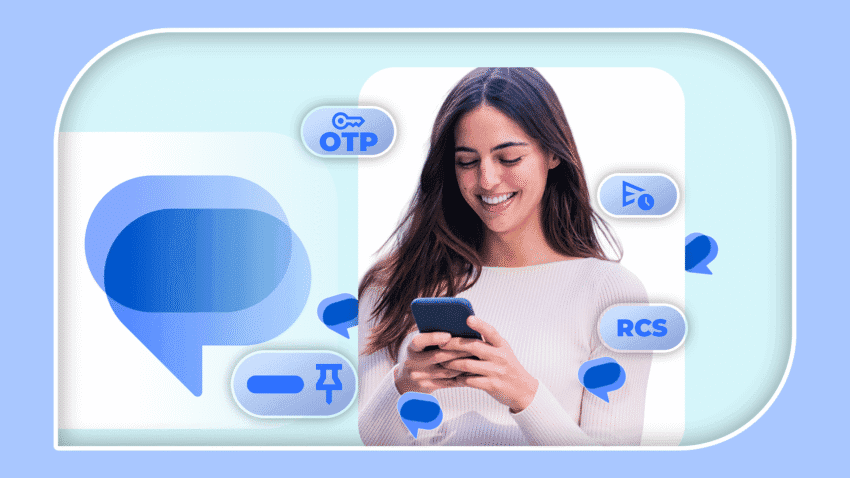
mastering google messages tips and tricks for The increasing volume of messages received daily can be overwhelming, particularly when they consist of bank notifications, one-time passwords (OTPs), promotional spam, and data usage warnings.
mastering google messages tips and tricks for
Understanding the Challenge of Message Overload
In today’s digital age, communication has become instantaneous, leading to an influx of messages that can quickly become unmanageable. For many users, the primary source of this barrage comes from various services, including banking institutions, e-commerce platforms, and social media networks. Each of these services often sends multiple notifications, which can clutter your messaging app and make it difficult to find important communications.
The challenge of managing this flood of messages is compounded by the fact that many users rely on their messaging apps for both personal and professional communication. As a result, distinguishing between critical messages and promotional content becomes essential for maintaining organization and efficiency.
Google Messages: A Solution for Organization
Google Messages, the default messaging app on many Android devices, offers several features designed to help users manage their messages effectively. By utilizing these features, users can streamline their messaging experience and reduce the chaos that often accompanies message overload.
Utilizing Categories for Better Organization
One of the standout features of Google Messages is its ability to categorize messages automatically. The app sorts messages into different categories, including Personal, Transactions, and Promotions. This categorization allows users to quickly access the type of messages they need without sifting through irrelevant notifications.
To enable this feature, users can navigate to the settings menu within the Google Messages app. From there, they can select the option to categorize messages. Once activated, the app will begin sorting incoming messages based on their content. For instance, bank notifications and OTPs will be categorized under Transactions, while promotional messages will fall under Promotions.
Pinning Important Conversations
Another effective way to manage messages in Google Messages is by pinning important conversations. This feature allows users to keep critical threads at the top of their messaging list, ensuring that they are easily accessible when needed.
To pin a conversation, users can simply long-press on the desired thread and select the pin icon that appears. This action will move the conversation to the top of the list, making it easier to find amidst a sea of other messages. Pinned conversations remain at the top, even as new messages arrive, providing a straightforward way to prioritize communication.
Leveraging Search and Filters
Google Messages also includes a powerful search function that can help users locate specific messages quickly. This feature is particularly useful when trying to find a particular OTP or important information buried within a lengthy conversation.
Using Search Effectively
To utilize the search function, users can tap on the search bar at the top of the app and enter keywords related to the message they are looking for. The app will then display a list of relevant conversations and messages that match the search criteria. This capability can save users significant time and frustration when trying to locate important information.
Applying Filters
In addition to searching, Google Messages allows users to apply filters to narrow down their results further. For example, users can filter messages by sender, date, or category. This added layer of organization can help users quickly find what they need without having to scroll through numerous threads.
Managing Spam and Unwanted Messages
Spam messages can be a significant source of clutter in any messaging app. Google Messages provides users with tools to manage and block unwanted messages effectively.
Blocking Unwanted Senders
Users can block specific numbers or contacts that consistently send spam or unwanted messages. To do this, users can long-press on the message from the sender they wish to block and select the block option. This action will prevent future messages from that sender from appearing in the inbox, effectively reducing clutter.
Reporting Spam
In addition to blocking senders, Google Messages allows users to report spam. When users encounter a message that they believe is spam, they can select the option to report it. This action not only helps the user but also contributes to improving the overall messaging experience for all users by alerting Google to potential spam sources.
Customizing Notifications for Enhanced Focus
Managing notifications is another crucial aspect of maintaining organization within Google Messages. Users can customize notifications to ensure they are only alerted for messages that matter most.
Setting Notification Preferences
To customize notifications, users can navigate to the app settings and select the Notifications option. Here, they can choose to enable or disable notifications for specific categories, such as Promotions or Transactions. This feature allows users to silence less important notifications while still receiving alerts for critical messages.
Utilizing Do Not Disturb Mode
For users who find themselves overwhelmed by notifications, Google Messages can be used in conjunction with the device’s Do Not Disturb mode. Activating this mode allows users to silence all notifications temporarily, providing a much-needed break from the constant influx of messages. Users can customize which contacts or apps are allowed to send notifications during this time, ensuring that they remain reachable for essential communications.
Integrating Google Messages with Other Apps
Google Messages can also be integrated with other applications to enhance functionality and streamline communication. For instance, users can link their Google account to access additional features and services.
Using Google Assistant
Google Assistant can be a valuable tool for managing messages. Users can ask the Assistant to send messages, read incoming messages aloud, or even search for specific content within Google Messages. This hands-free capability can be particularly beneficial for users who are on the go or multitasking.
Third-Party Integrations
Additionally, Google Messages can work in tandem with various third-party applications, such as task management tools or email clients. By integrating these apps, users can create a more cohesive workflow, ensuring that important messages are not lost in the shuffle.
Best Practices for Message Management
While Google Messages offers numerous features for organization, users can also adopt best practices to further enhance their messaging experience. Here are some strategies to consider:
- Regularly Review Messages: Set aside time each week to review and delete unnecessary messages. This practice can help keep the inbox manageable.
- Utilize Archive Feature: For conversations that are no longer active but may be needed later, consider using the archive feature. This action removes the conversation from the main inbox while keeping it accessible for future reference.
- Stay Updated: Regularly check for updates to the Google Messages app. New features and improvements are frequently rolled out, which can enhance the user experience.
Conclusion
In a world where communication is constant, mastering Google Messages can significantly improve how users manage their messaging experience. By utilizing the app’s features, such as categorization, pinning, search functions, and notification management, users can regain control over their messaging environment. Implementing best practices and integrating Google Messages with other applications can further streamline communication, allowing users to focus on what truly matters.
Source: Original report
Was this helpful?
Explore more: Mobile App Development More Mobile Technology Tech News
Last Modified: September 13, 2025 at 8:37 pm
9 views